# Your first workflow
Connect a planner to a checklist agent and give them a release task. You need a ready model provider; no repository or MCP tool is used.
```mermaid
flowchart LR
Request["Your request"] --> Planner["Planner Write 3 to 5 steps"]
Planner -->|"Upstream handoff"| Checklist["Checklist Make each step actionable"]
Checklist --> Result["Final checklist"]
```
The connection makes `Checklist` wait for `Planner`. Afterwards you can read both conversations.
## 1. Open OpenFlow
Open the [installed app](https://philbotar.github.io/OpenFlow/getting-started/) or your [development build](https://philbotar.github.io/OpenFlow/getting-started/build-from-source.html). Confirm the active provider is ready in **Settings → Providers**. If not, see [Provider setup](https://philbotar.github.io/OpenFlow/guides/provider-setup.html) or [Provider not ready](https://philbotar.github.io/OpenFlow/troubleshooting/#provider-not-ready).
## 2. Create and name the workflow
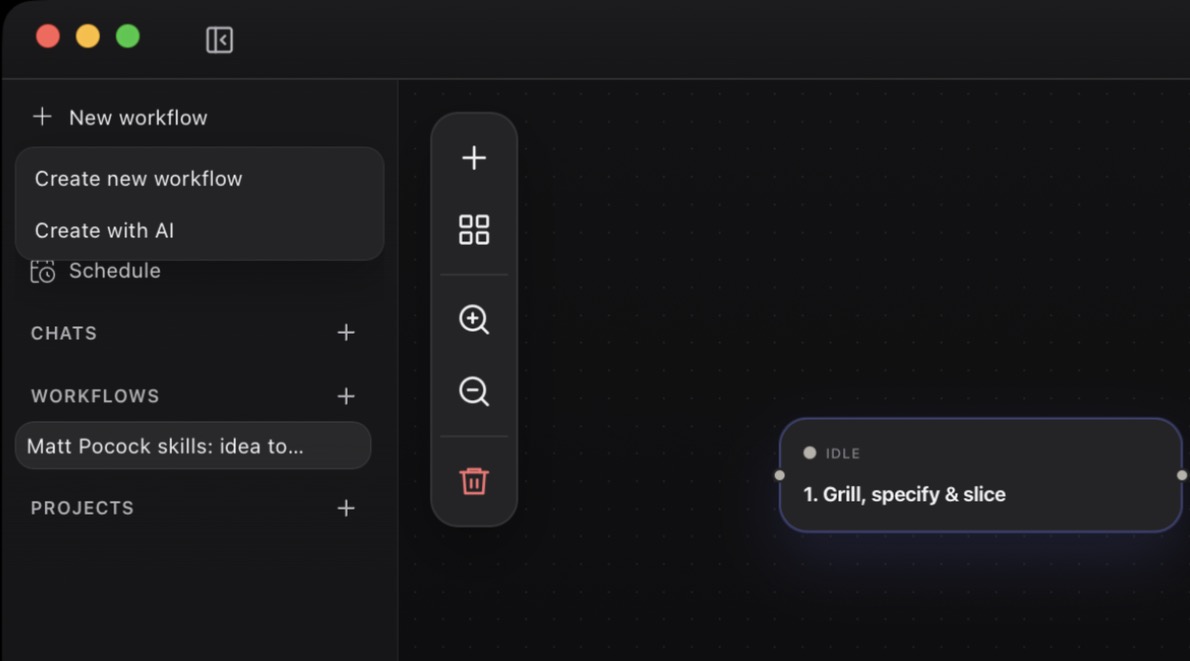
1. In the sidebar, select **New workflow**, then **Create new workflow**.
2. From the workflow's row menu, select **Rename**, enter `Release checklist demo`, and press Enter.
[](https://philbotar.github.io/OpenFlow/media/screenshots/first-workflow-new-workflow-menu.jpg)
New workflow opens this menu. Choose Create new workflow.
This is an app workflow, stored in OpenFlow's local data directory. To store it in a repository, use **New workflow** on that project's row instead. [Projects and persistence](https://philbotar.github.io/OpenFlow/guides/projects-and-persistence.html) explains where each kind is stored.
## 3. Add the Planner node
1. Select the `Idea` node that every new workflow starts with.
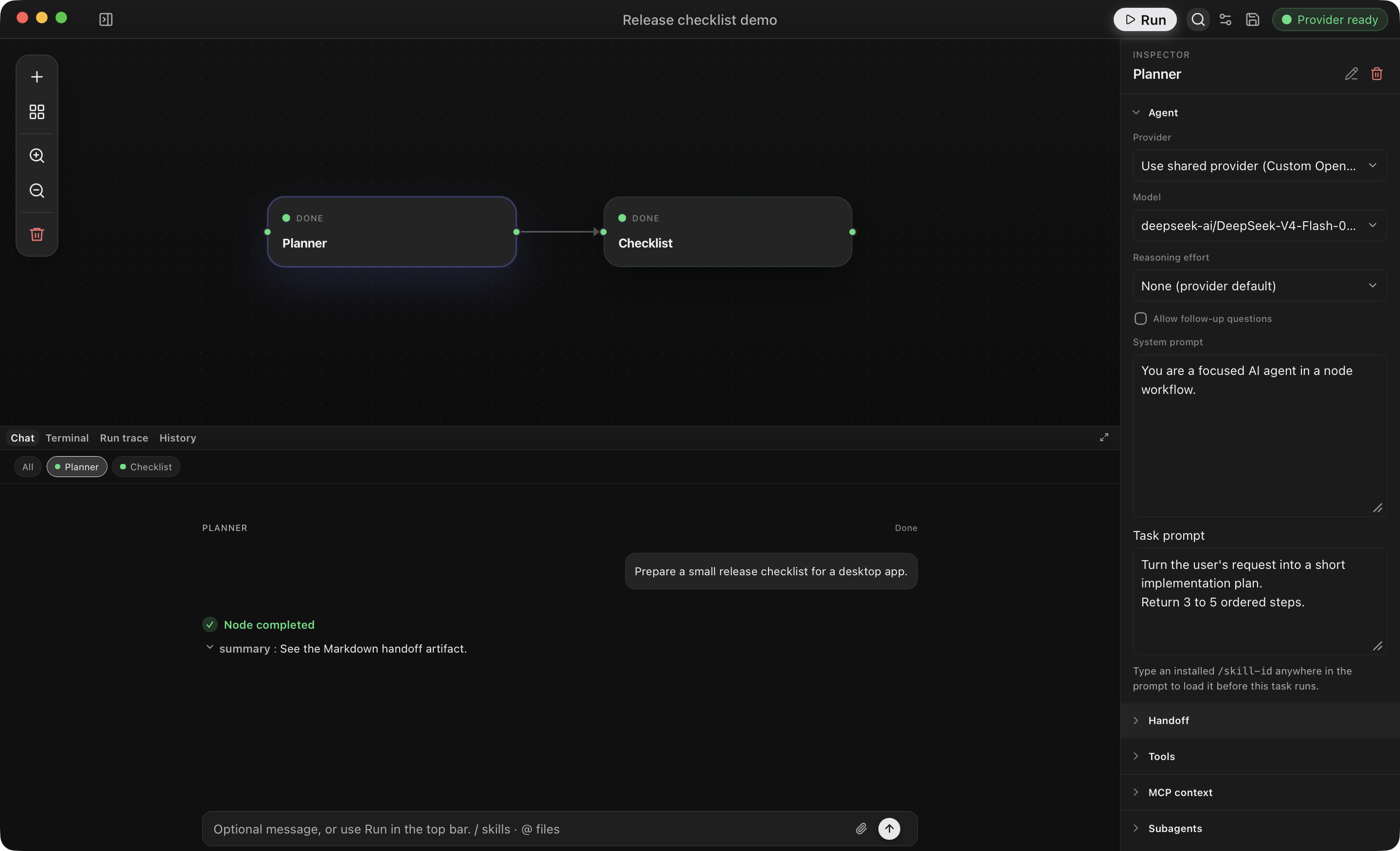
2. In the Inspector header, select the pencil (**Rename Idea**) and enter `Planner`.
3. Paste into **Task prompt**:
```text
Turn the user's request into a short implementation plan.
Return 3 to 5 ordered steps.
```
[](https://philbotar.github.io/OpenFlow/media/screenshots/release-checklist-inspector.png)
A saved example that has already run. The Inspector edits the selected node; Task prompt is below the system prompt. Select any screenshot for full size.
Leave **Approval mode** at its default; this node uses no repository or external tool.
## 4. Add and connect the Checklist node
1. Select **Add node → Blank agent node** and rename the new node `Checklist`.
2. Paste into **Task prompt**:
```text
Convert the upstream plan into a checklist.
Each item should be directly actionable.
```
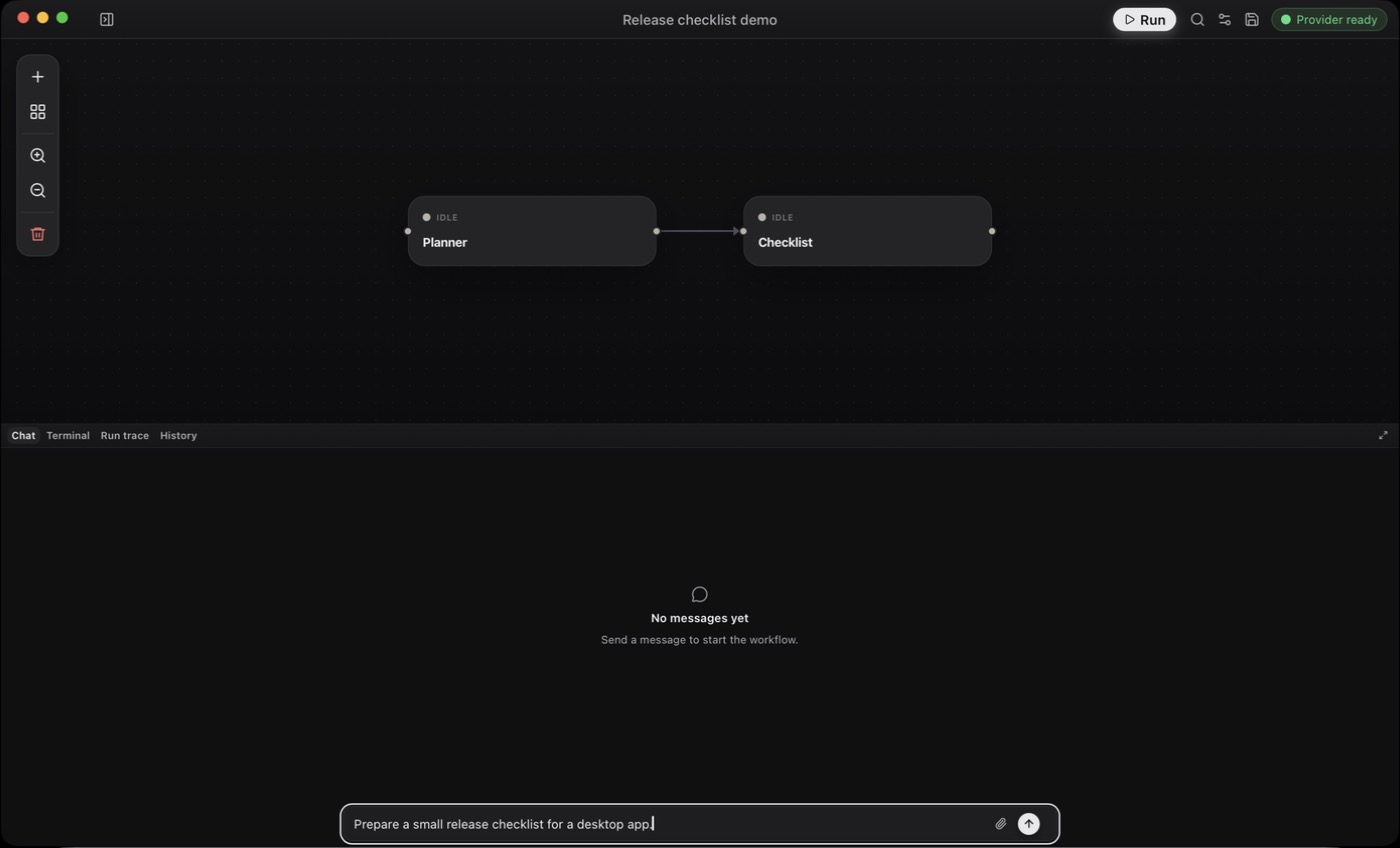
3. Drag from the output handle on `Planner` to the input handle on `Checklist`. The arrow must point from `Planner` to `Checklist`.
4. Select **Save workflow** in the top bar. A **Saved** notification confirms the graph and prompts were saved.
[](https://philbotar.github.io/OpenFlow/media/screenshots/first-workflow-ready-to-start.jpg)
Ready to run: the arrow points from Planner to Checklist, and the request is typed in the composer.
## 5. Start the workflow with a message
1. In the **Chat** dock, enter:
```text
Prepare a small release checklist for a desktop app.
```
2. Select **Start workflow** in the composer.
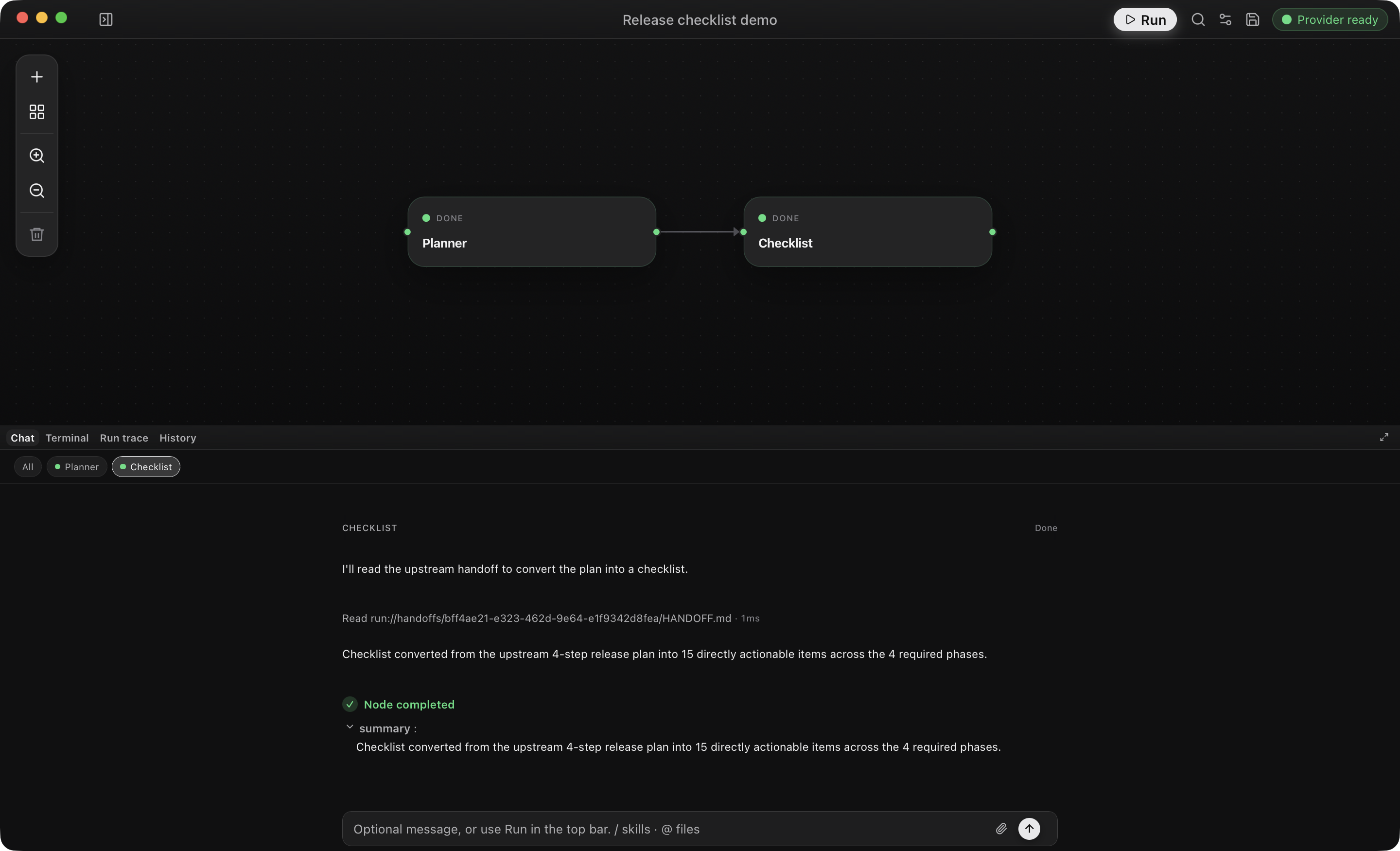
`Planner` turns the starter message into a plan. `Checklist` then turns the upstream handoff into a checklist. When both nodes complete, the run status is `completed`.
[](https://philbotar.github.io/OpenFlow/media/screenshots/release-checklist-run.png)
Both nodes are Done, with Checklist’s conversation selected, showing a completion summary. Your model’s wording may differ.
- Use the `Planner` and `Checklist` filters to read each conversation.
- A Markdown handoff may appear only as a completion summary. Expand a downstream **Read** tool entry to see the upstream handoff it used.
- **Run trace** shows execution events; **History** keeps the run for replay.
If the graph doesn't start, see [Workflow validation and authoring](https://philbotar.github.io/OpenFlow/troubleshooting/#workflow-validation-and-authoring).
The run is saved in **History**. Send a different request to run the same workflow again. To extend the graph, see [Workflow authoring](https://philbotar.github.io/OpenFlow/guides/workflow-authoring.html); to add tools or callable agents, see [Tools and integrations](https://philbotar.github.io/OpenFlow/guides/tools-and-integrations.html).