
Your first workflow
Connect a planner to a checklist agent and give them a release task. You need a ready model provider; no repository or MCP tool is used.
flowchart LR
    Request["Your request"] --> Planner["Planner<br/>Write 3 to 5 steps"]
    Planner -->|"Upstream handoff"| Checklist["Checklist<br/>Make each step actionable"]
    Checklist --> Result["Final checklist"]
The connection makes Checklist wait for Planner. Afterwards you can read both conversations.
1. Open OpenFlow
Open the installed app or your development build. Confirm the active provider is ready in Settings → Providers. If not, see Provider setup or Provider not ready.
2. Create and name the workflow
- In the sidebar, select New workflow, then Create new workflow.
- From the workflow's row menu, select Rename, enter
Release checklist demo, and press Enter.
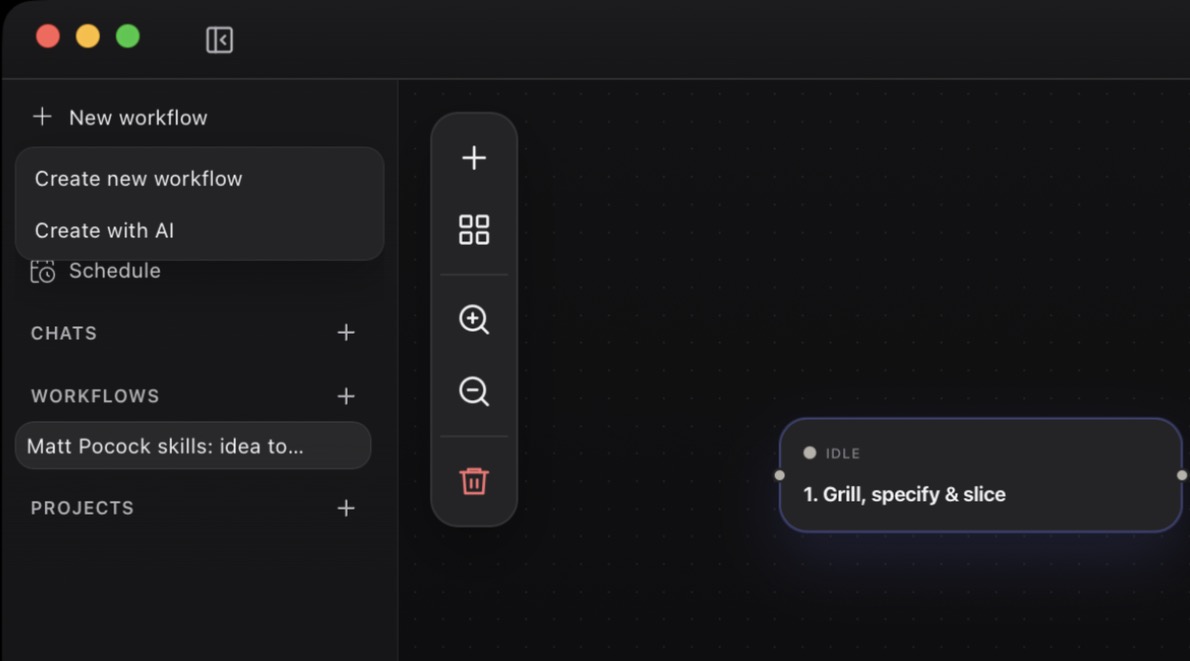
This is an app workflow, stored in OpenFlow's local data directory. To store it in a repository, use New workflow on that project's row instead. Projects and persistence explains where each kind is stored.
3. Add the Planner node
Select the
Ideanode that every new workflow starts with.In the Inspector header, select the pencil (Rename Idea) and enter
Planner.Paste into Task prompt:
textTurn the user's request into a short implementation plan. Return 3 to 5 ordered steps.
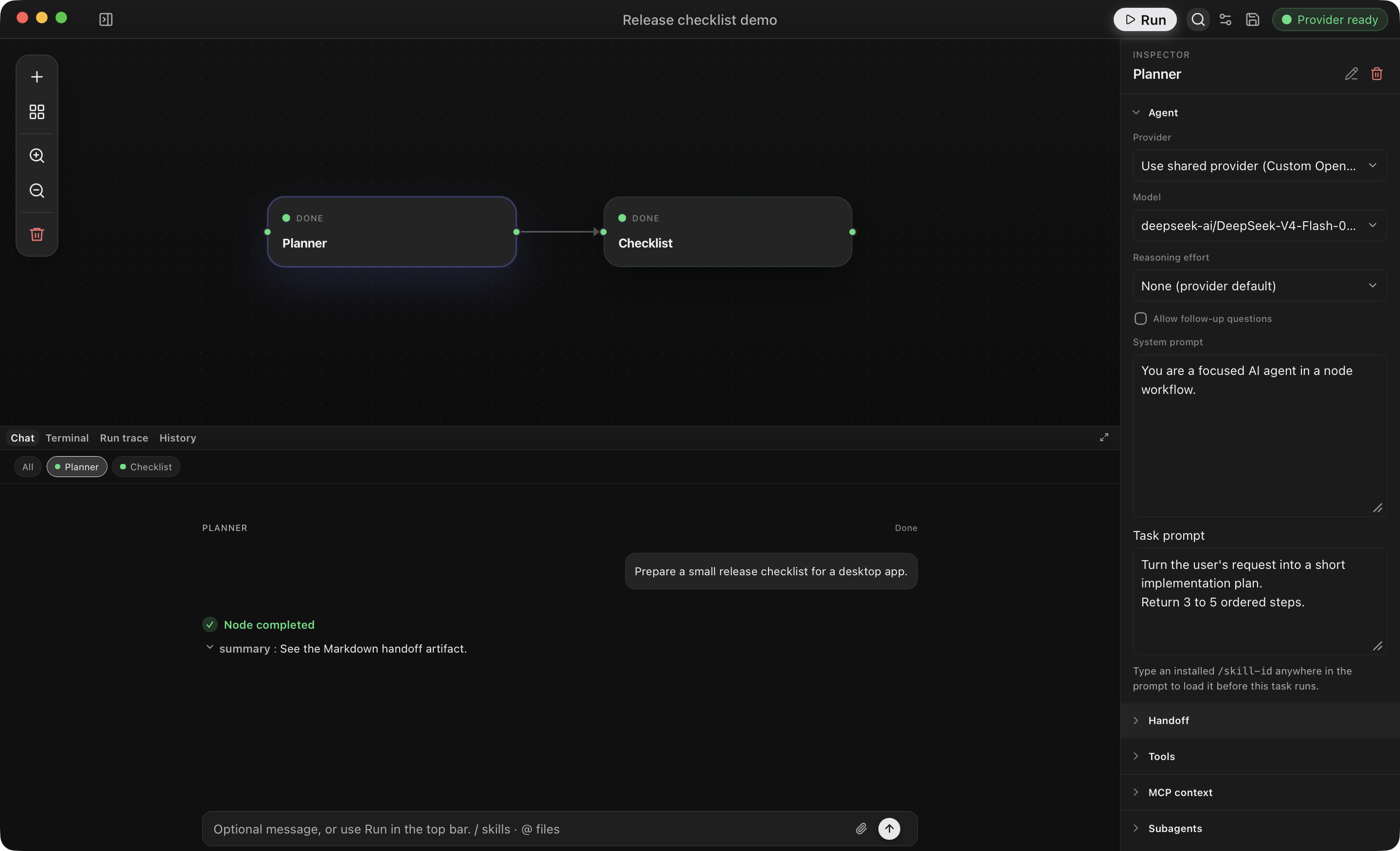
Leave Approval mode at its default; this node uses no repository or external tool.
4. Add and connect the Checklist node
Select Add node → Blank agent node and rename the new node
Checklist.Paste into Task prompt:
textConvert the upstream plan into a checklist. Each item should be directly actionable.Drag from the output handle on
Plannerto the input handle onChecklist. The arrow must point fromPlannertoChecklist.Select Save workflow in the top bar. A Saved notification confirms the graph and prompts were saved.
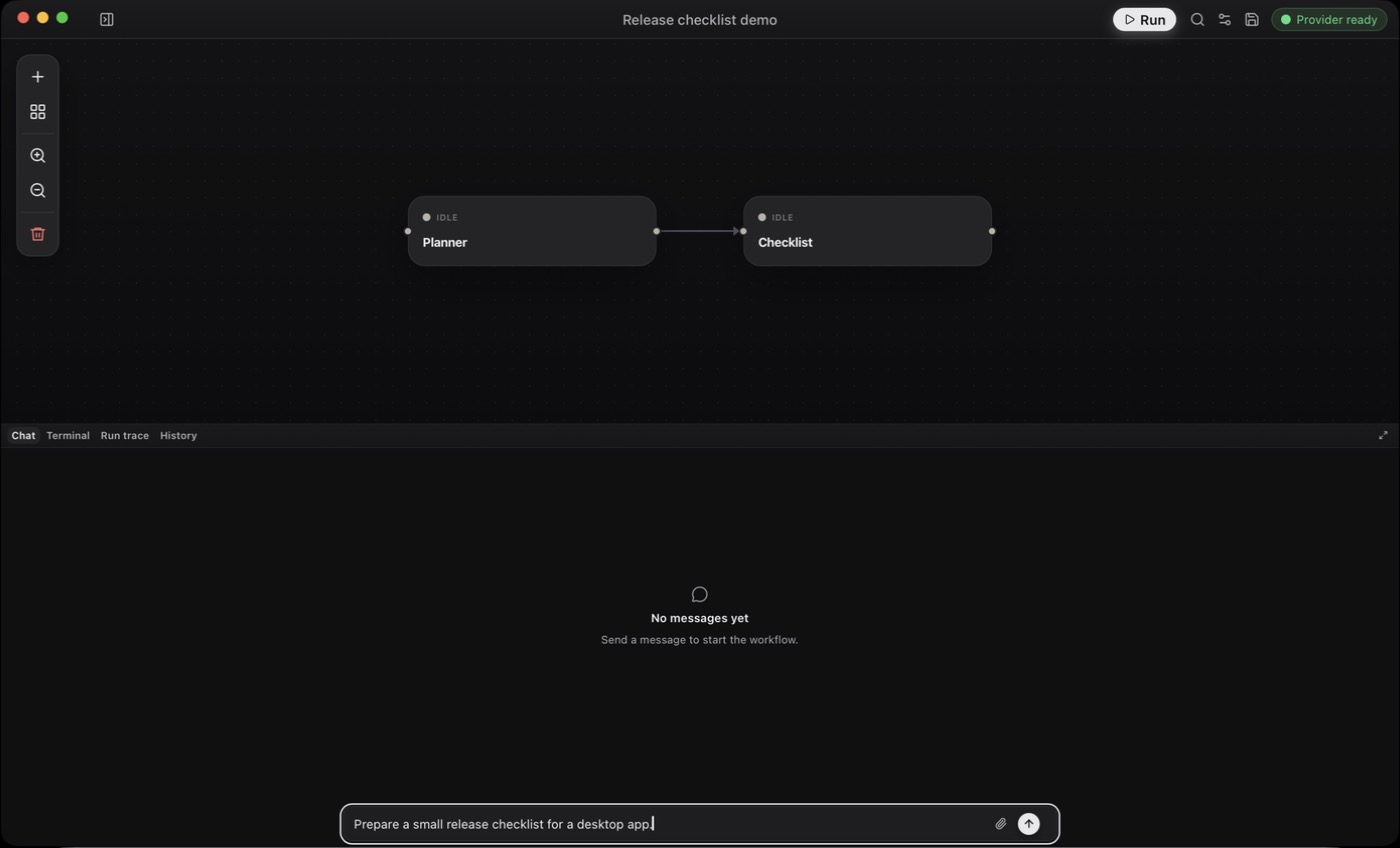
Planner to Checklist, and the request is typed in the composer.5. Start the workflow with a message
In the Chat dock, enter:
textPrepare a small release checklist for a desktop app.Select Start workflow in the composer.
Planner turns the starter message into a plan. Checklist then turns the upstream handoff into a checklist. When both nodes complete, the run status is completed.
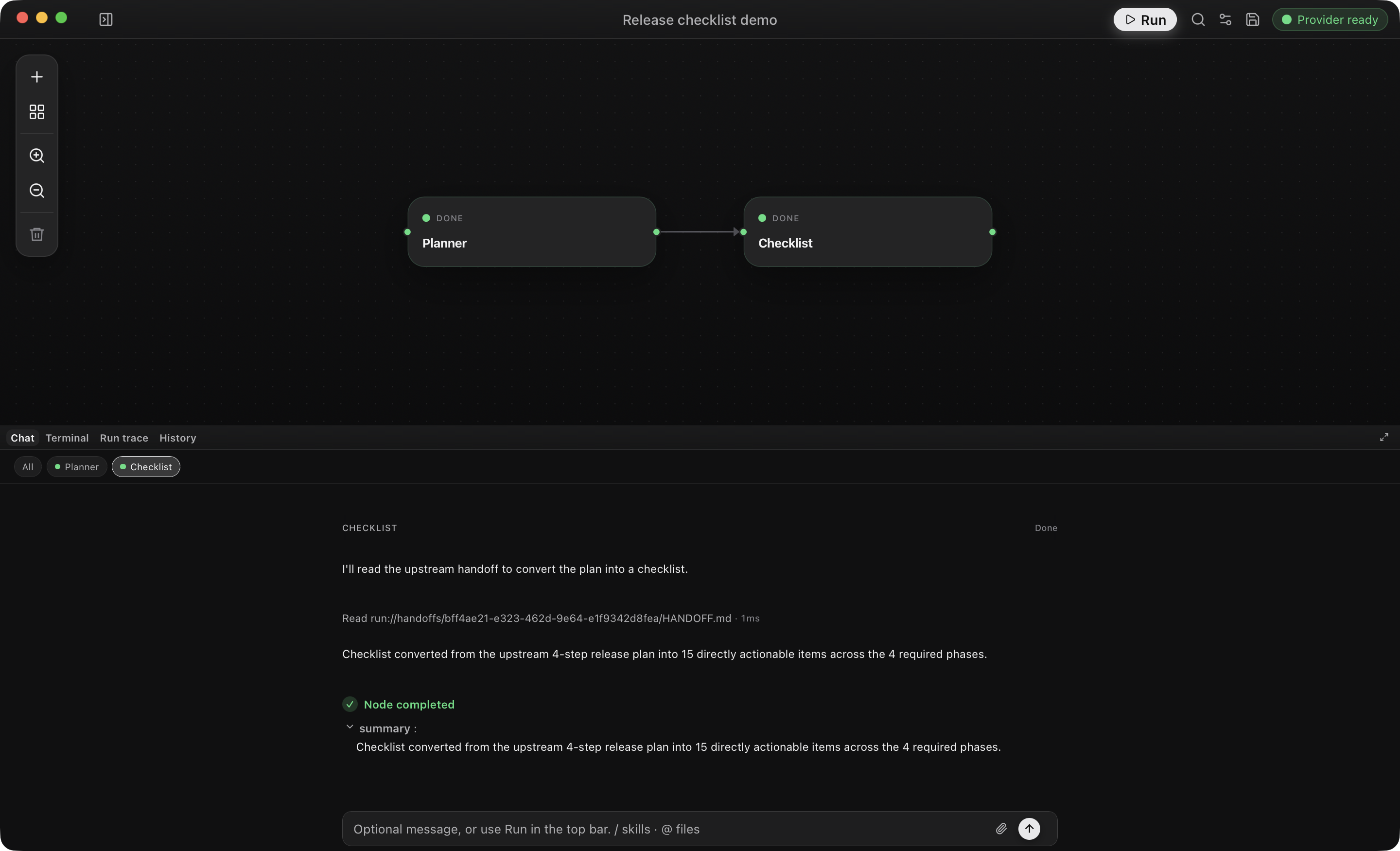
- Use the
PlannerandChecklistfilters to read each conversation. - A Markdown handoff may appear only as a completion summary. Expand a downstream Read tool entry to see the upstream handoff it used.
- Run trace shows execution events; History keeps the run for replay.
If the graph doesn't start, see Workflow validation and authoring.
The run is saved in History. Send a different request to run the same workflow again. To extend the graph, see Workflow authoring; to add tools or callable agents, see Tools and integrations.