
Provider setup
A provider is the model service OpenFlow calls for runs, chats, and AI-assisted workflow editing. Connect one in Settings → Providers. Run stays disabled until the provider shows Ready.
On first launch, the quick tour's Connect an AI provider step points to Settings in the sidebar.
Connect a provider
- Open Settings → Providers and pick one from the Provider dropdown.
- Authenticate it using the section below.
- Check that the status chip says Ready.
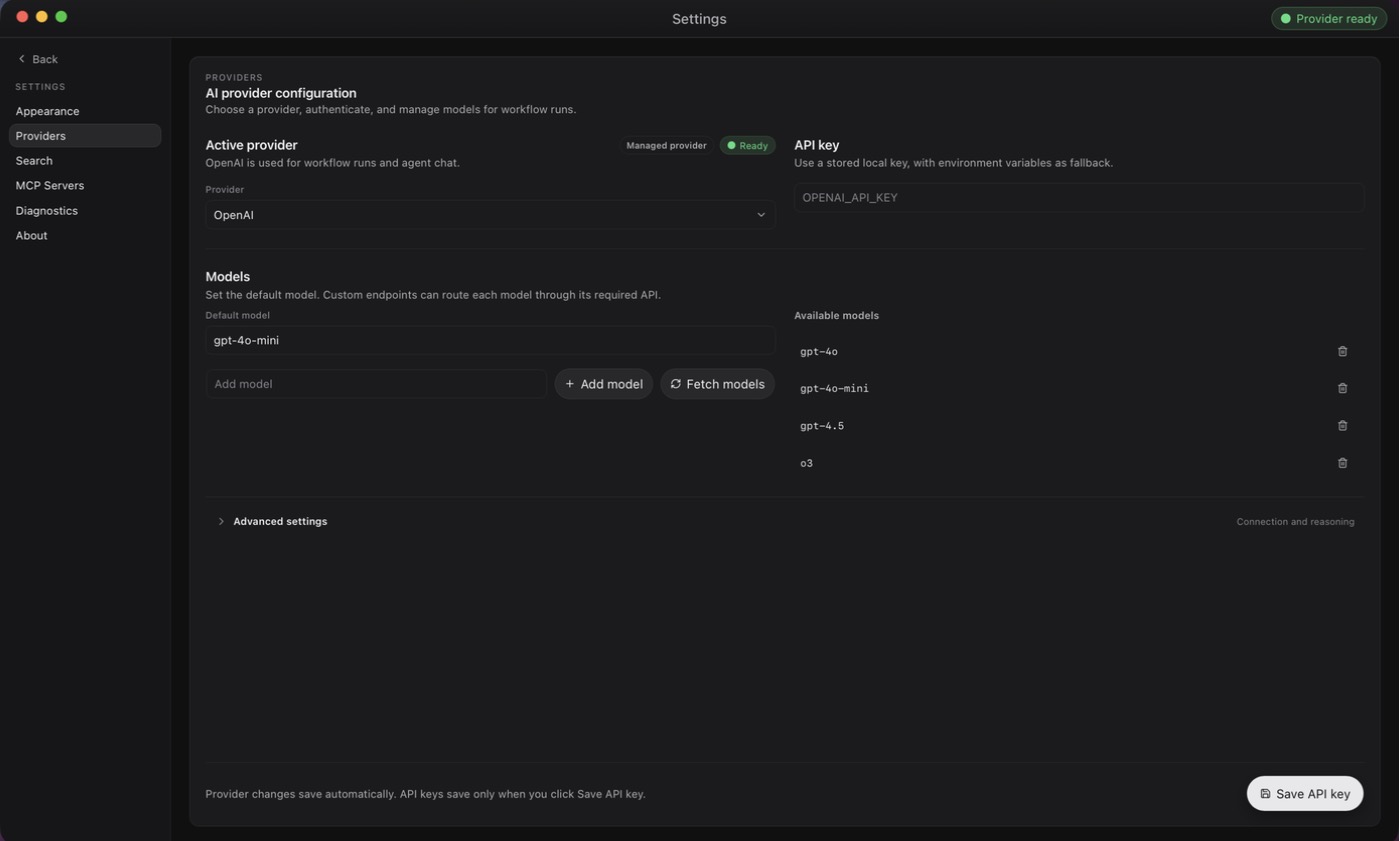
Profile changes save automatically. Only API keys need an explicit Save API key. The active provider is the default for chats and for workflows that don't choose their own.
Without a provider
You can still create workflows, edit nodes, and save graphs. Run, Create with AI, and other model-backed actions stay disabled until the provider is ready.
Authenticate
API key
Applies to OpenAI, Anthropic, OpenRouter, and other hosted providers.
- Paste your key into the API key panel.
- Select Save API key.
The key is stored in plain text in the local settings.json. If you'd rather not save it, set the provider's environment variable (such as OPENAI_API_KEY or ANTHROPIC_API_KEY) before launching OpenFlow. Provider profiles lists the variables and which source wins.
ChatGPT (Codex)
- Select ChatGPT (Codex) as the provider.
- Select Sign in with ChatGPT and finish in the browser.

If port 1455 is busy, OpenFlow offers a device code instead. Use Disconnect to sign out. Usage bills to your ChatGPT plan, not to an API account, and OPENAI_API_KEY is not used. If sign-in fails, see ChatGPT (Codex) sign-in.
Amazon Bedrock
- Select Amazon Bedrock.
- Set AWS profile (or an optional Credential command) and, under Advanced settings, AWS region. Or leave them to pick up
AWS_PROFILEandAWS_REGIONfrom your environment. - Select Test AWS connection. Until you do, Bedrock only reports that the region is configured; it hasn't checked your credentials.
- Optionally select Fetch from AWS and choose which models to expose.
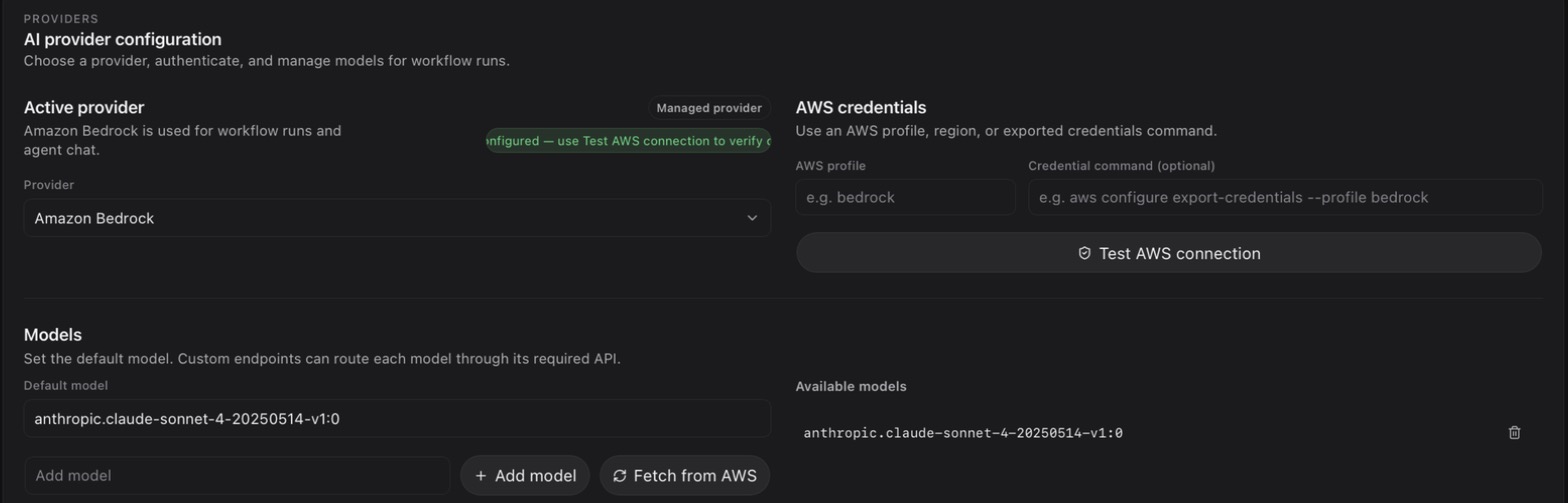
For SSO credentials, see Bedrock with SSO.
Local and custom endpoints
- Ollama local and LM Studio local: start the local server first. No key needed.
- Custom OpenAI-compatible API: set API base URL. Leave the key empty for a trusted endpoint with no auth.
Choose models per workflow
The active provider supplies models by default. To change that:
- Set a shared provider in Workflow settings.
- Override it for one node with Provider in that node's Inspector.
The most specific choice wins: node, then workflow, then active provider.
Under Settings → Providers, Fetch models lists what the provider offers, and you can add a model ID it doesn't return. On custom OpenAI-compatible profiles you can set each model's API type (Responses, Chat Completions, or Anthropic Messages). Providers that support extended thinking also let you set a default reasoning effort.
Verify
- Check that Settings → Providers says Ready.
- Open New chat and send a short message. A reply confirms the provider accepts requests. Ready only means the configuration is complete.
If it still isn't ready, see Provider not ready. Otherwise, start a direct chat or build your first workflow.
For default endpoints and wire APIs, see Provider profiles. Web search and MCP use separate settings. For how requests are routed, see Request routing.