
Scheduling workflows
The scheduler runs inside the desktop app, so OpenFlow must stay open for schedules to run. It can't start the app.
First save the workflow, make its provider ready, and confirm its project execution folder is writable.
Create a schedule
- Select Schedule in the sidebar, then Add workflow, and choose a workflow.
- Choose At time and select the time summary (initially Daily at 09:00) to open Time and days. Or choose Repeat and set Every in minutes, hours, or days.
- Save, then check the row's local Next time.
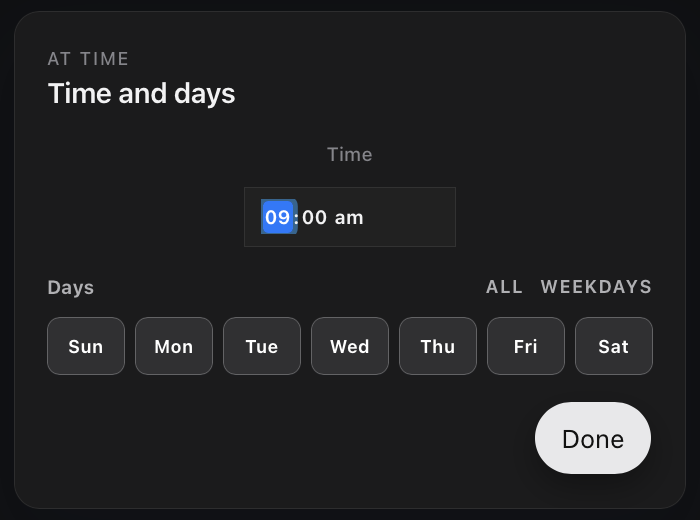
Each row has an On/Off control, Next and Last run information, and a trash action to remove it. Timed schedules default to 09:00 on all days; interval schedules default to 30 minutes. Schedule limits are 1 to 59 minutes, 1 to 23 hours, or 1 to 31 days.
Add workflow immediately saves the 09:00 default in your system's local IANA timezone. Saving an edited timed or interval preset stores the generated schedule in UTC. Check the local Next time after every save.
Scheduled run behavior
Scheduled runs use the same runtime, provider routing, approvals, tools, project execution directory, and durable storage as manual runs. Configure entrypoint behavior before enabling the schedule.
If a scheduled run pauses for human input or tool approval, open the workflow and find the run in History. Answer an active run in its conversation; resume an inactive one from History if Resume run is offered.
After reopening OpenFlow, check Next and Last once the app has loaded.
Troubleshoot a schedule
If a schedule doesn't fire, confirm the row is On, the workflow exists, the provider is ready, the app is running, and the project .flow directory is writable. For a run that started but paused or failed, see Runs and recovery.