
Workflow authoring
Add agent nodes and connect their dependencies, or let Create with AI draft the graph. You can edit a graph locally without a provider; Create with AI and runs need a ready one. Your first workflow walks through a two-node example.
Create a workflow
From Workflows, select New workflow, then Create new workflow. From a project row, choose New workflow or Create with AI. A project workflow is written under .flow/workflows/; an app workflow goes in OpenFlow's own data directory.
The only implemented node kind is the agent node. Edges express dependencies.
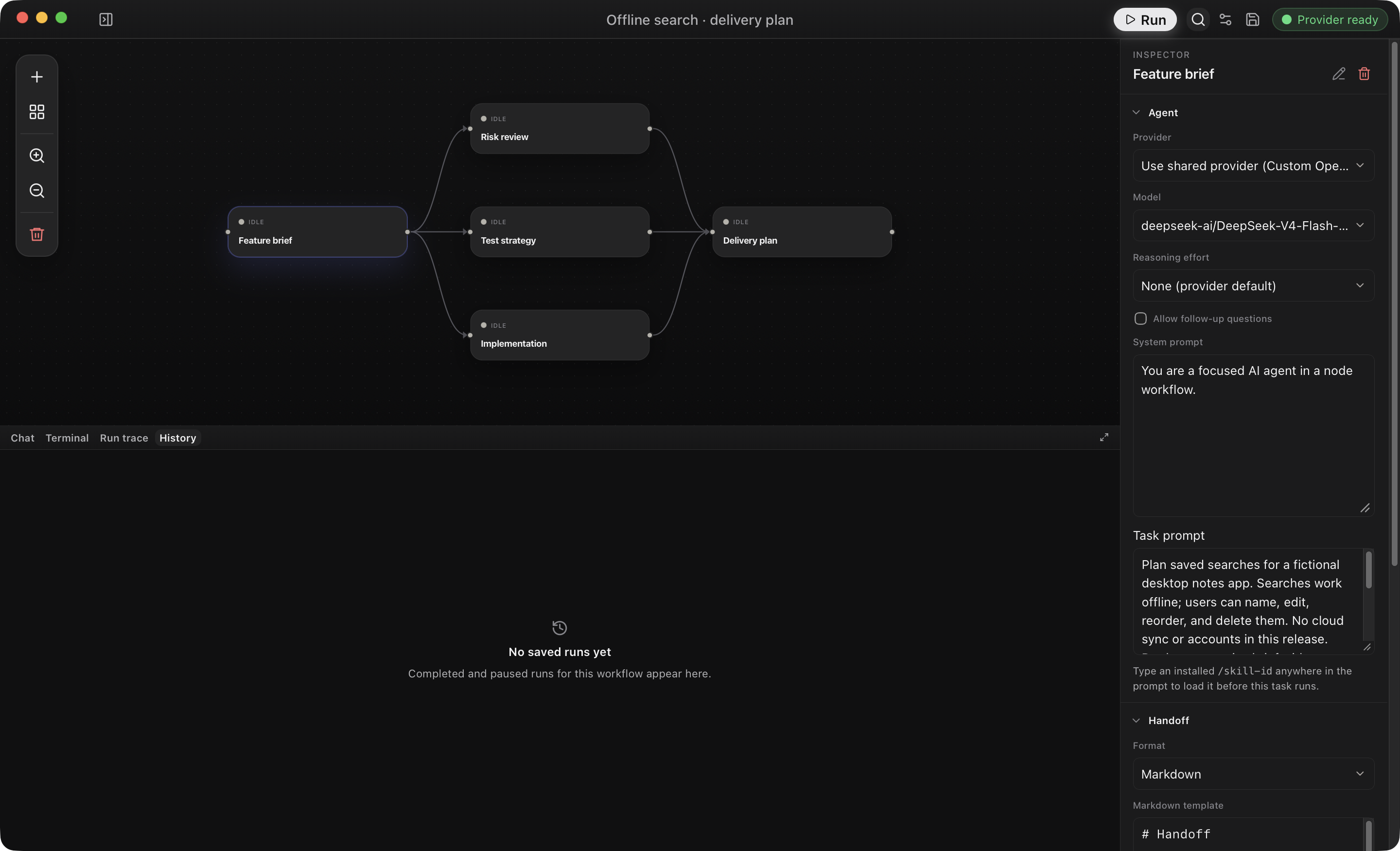
Validation flags an empty graph, duplicate node IDs, missing edge endpoints, self-edges, cycles, invalid output schemas, and invalid handoff templates.
Configure nodes and workflow settings
Select a node to open the Inspector. Set Provider, Model, reasoning, Allow follow-up questions, System prompt, and Task prompt. The remaining sections set the handoff format and schema, plus tool approval mode, MCP context, and callable subagents.
Workflow Settings holds the shared provider and context, speed (when supported), Plan → Execute mode, default reasoning, overseer model, and retry attempts and backoff. Automatic runs are set on the separate Schedule screen.
Provider order is node override, then workflow provider, then the active Settings provider. An empty node model inherits the effective provider's default model. All workflow defaults: configuration reference.
Choose an output handoff
New nodes default to Markdown. The template needs at least one heading, and completed output must keep every template heading. OpenFlow stores the result as HANDOFF.md and passes downstream nodes an artifact reference and hash.
Use JSON when downstream work needs typed machine data. OpenFlow validates the object against the node's JSON schema, stores HANDOFF.json, and passes downstream nodes the structured output and artifact reference. Older workflows without an explicit handoff format still load as JSON.
Create with AI safely
Create with AI opens an authoring session and needs a ready provider. Ask questions normally; the assistant proposes graph changes only after you explicitly ask it to create or edit the workflow.
- Choose the target project before the first message; it locks once the conversation starts. You can still change the authoring model, reasoning, and speed between turns.
- Review the proposed graph, then select Create Workflow or Apply Changes. Nothing is saved until that action succeeds.
Authoring tool access is separate from direct-chat approval controls. If you leave the authoring screen without cancelling, use Resume AI workflow draft when offered. Cancel ends the session, discards its unsaved draft and conversation, and returns to the editor.
Validate before running
Check canvas validation, provider and model readiness, prompts, edges, handoff headings, and tool approval mode. For a project workflow, OpenFlow probes .flow write access before starting. When validation clears, select Run. Runs and recovery covers questions, approvals, retries, and resume.
Add tools and callable agents
- Inspector → Tools: approval mode for repository tools.
- Settings → MCP Servers: configure external servers, then select their resources or prompts in Inspector → MCP context.
- Agents screen: create reusable agent definitions, then select them in Inspector → Subagents. Saved agents are snapshotted at run start, so library edits don't affect an active run.
Tools and integrations defines approvals, MCP context, and reuse. To run a saved workflow at a time or interval, see Scheduling workflows.